Advanced Vibe Coding with Claude Code [Guide + Real Demos]
Master advanced vibe coding with Claude Code. Complete guide to Task Lists, Plan Mode, Explore Agent, and Background Processes. Video walkthroughs and real project demos for top 1% productivity.

![Advanced Vibe Coding with Claude Code [Guide + Real Demos]](/content/images/size/w1200/2026/02/Blog-Featured-Images...--1-.png)
Use Claude Code's advanced features - from Plan Mode to Specialized Agents.
You've installed Claude Code.
You've built your first projects.
You can use Claude Code to get things done.
That means "You're officially VIBE Coding".
But most people only use about 20% of Claude Code's true power.
If you followed my starter guide to Vibe Coding with Claude Code, you learned the fundamentals.
Read this starter guide if you are new to Claude Code.
It will help you get started right from scratch👇
 Chiranjeev Gaggar
End-To-End Starter Guide For Vibe Coding with Claude Code
Now you have your Vibe Coding foundations.
This guide will take you to the next level of Vibe Coding.
After building dozens of Agentic workflows with Claude Code, I realized that real productivity gains come from using the advanced features.
The top 1% of users use Claude Code like an Agentic AI workspace. Claude Code is production-ready, battle-tested, and available right now.
If you want agentic AI for development today, Claude Code is your tool.
What You'll Learn in This Vibe Coding Guide:
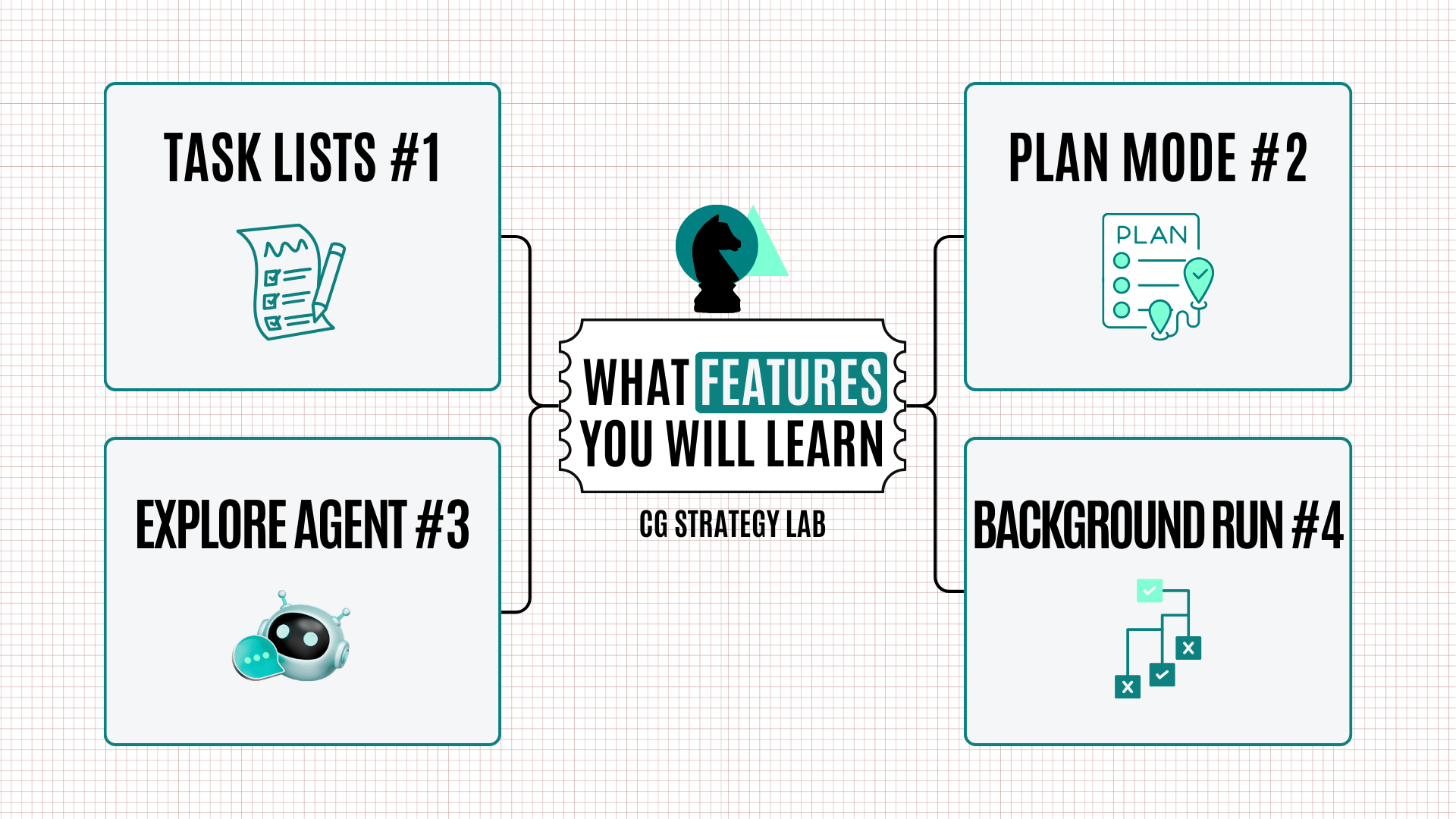
I'll walk you through 4 advanced features that separate the Pros from everyone else. Each one includes real demos / screenshots from my projects.
Here's what we're covering:
- Task Lists - Structure complex projects with tasks that persist across context clears.
- Plan Mode - Get architectural alignment and design an implementation plan before writing code.
- Explore Agent (Specialized Agent) - Understand any codebase fast by using Explore agent.
- Background Processes - True parallel productivity. Launch research tasks in the background while you continue building.
These aren't hidden features. They're built into Claude Code. Most users just don't know they exist or when to use them.
Let's start with the feature that changed how I approach every multi-step project.
Feature #1: Task Lists
Never Lose Track of Complex Projects

What are Task Lists?
- It's Claude Code's task management system that lets you break down complex projects into structured, trackable tasks.
- When you request a multi-step build, Claude creates a task list that persists outside your conversation.
Why Task Lists?
Vibe coders when building something complex, make progress, then clear context to save tokens. It's tough to maintain context when you come back.
With Task Lists, You Can:
- Clear context aggressively without losing project state
- Track progress automatically as Claude completes work
- Switch between sessions and pick up exactly where you left off
- Reduce mental load by offloading project structure to the system
Real Demo: Building a Markdown-to-PDF Converter
To demonstrate task lists, I asked Claude to help me build a markdown-to-PDF converter from scratch.
1. Task Lists Demo - For building a Markdown to PDF Converter
How I Used It: Step-by-Step Walkthrough
Step 1: Request the Complex Project
I gave Claude a clear but high-level request:
"Create a task list for building a markdown to pdf converter"
Notice I didn't break it down myself. I let Claude handle the decomposition.
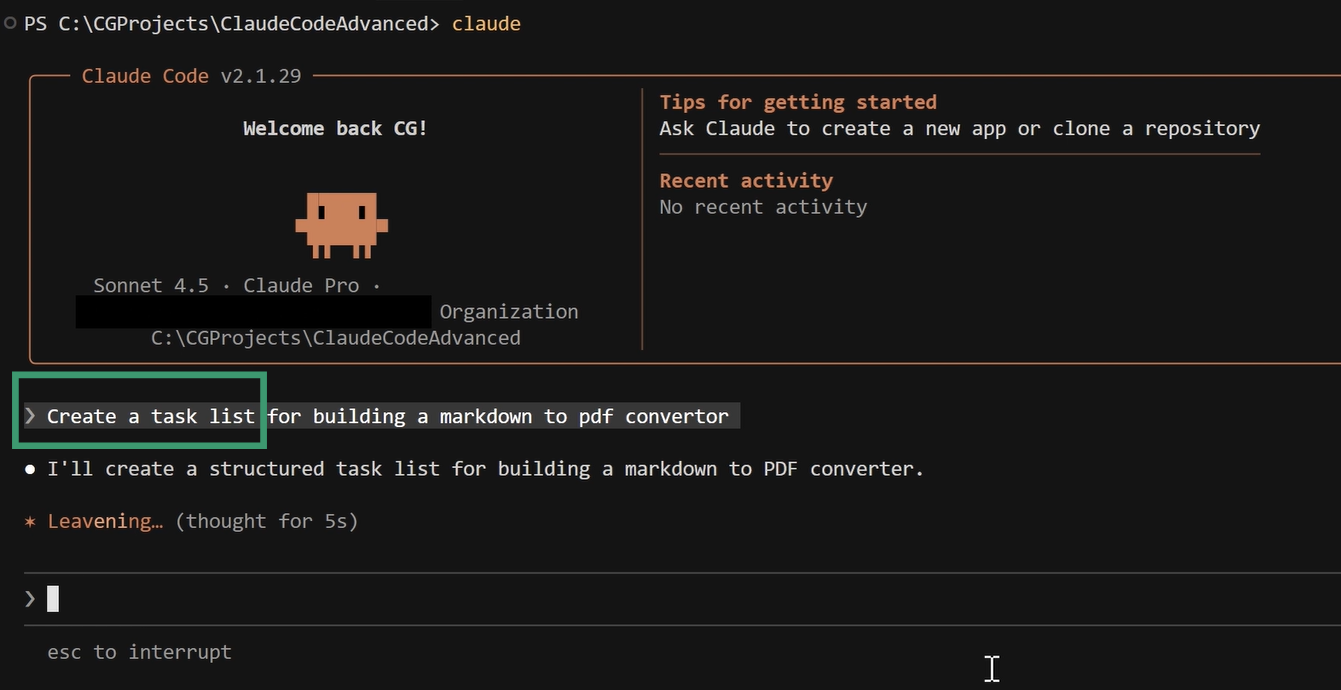
Step 2: Claude Structures the Work
Within seconds, Claude responded: "I'll create a structured task list for building a markdown to PDF converter."
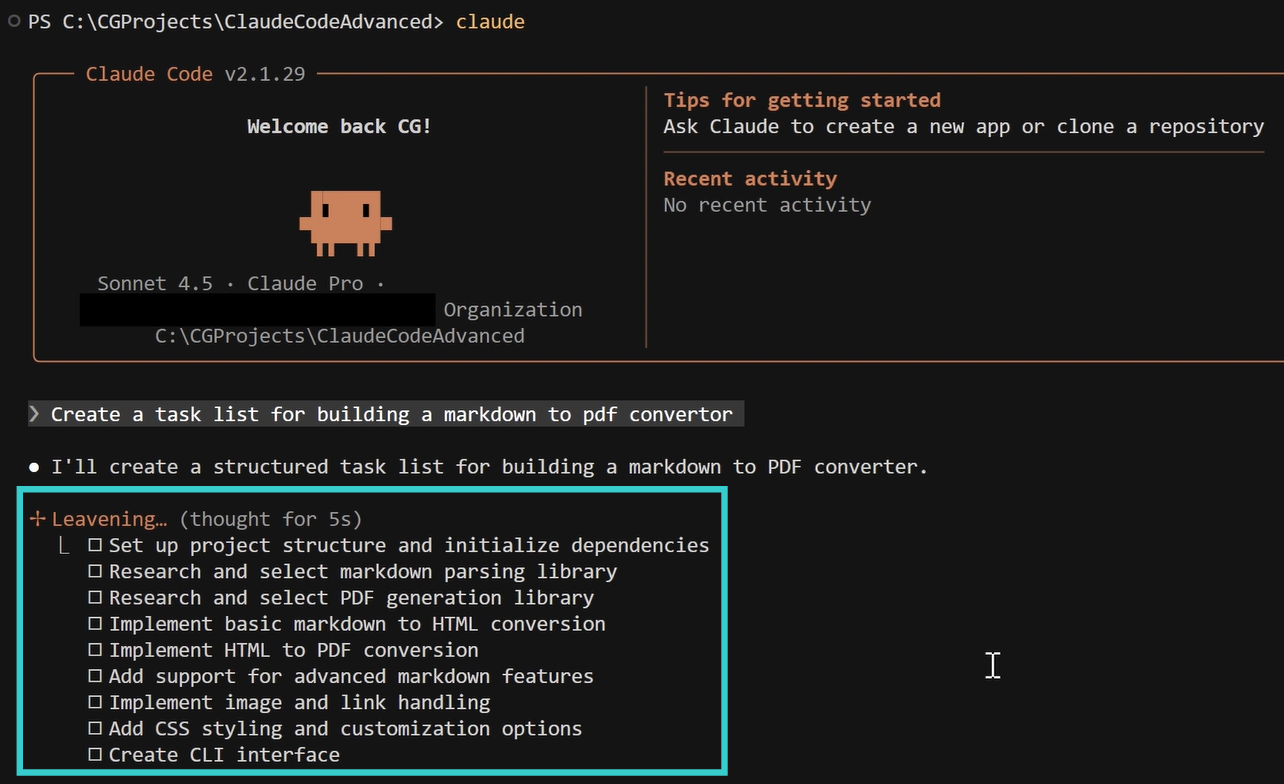
Claude mapped the entire journey, identified dependencies (you need HTML conversion before PDF conversion), and created logical phases.
This isn't just a bullet list. It's a structured plan with clear next steps.
Step 3: Understanding Persistence
Here's where task lists prove their value. The task list doesn't live in your conversation. It lives in Claude Code's task management system.
This means when you type `/clear` to reset context and save tokens, then check back in with "show me the task list," everything is still there.
You can close the terminal, restart your computer, come back tomorrow. Your tasks remain. Your progress state is preserved.
When to Use Task Lists
Trigger task lists for:
- Multi-step builds with distinct phases
- Long projects spanning multiple sessions
- Iterative work you'll interrupt and return to later
Note: You don't always need to ask explicitly. For complex requests, Claude often creates task lists proactively.
Key Takeaways
- Context Independence: Clear context aggressively to save tokens. Your project structure remains intact. No more "where was I?" moments when you return.
- Mental Load Reduction: Instead of holding the entire project structure in your head, offload it to the task system.
- Iterative Work Flow: Build in sessions. Work for an hour, close everything, come back next week. Pick up exactly where you left off.
Pro Tip: When starting your next multi-step project, try: "Create a task list for [your project] and let's work through it systematically." This signals upfront that you want structured progress tracking.
Feature #2: Plan Mode
Get Full Alignment Before Coding

What is Plan Mode?
- Plan Mode is Claude Code's architectural planning feature for building complex, useful workflows
- Claude enters a dedicated planning phase to explore codebase, research best practices, and designs an implementation plan.
Why This Matters
How many times have you started building something, only to realize halfway through that you made the wrong architectural choice?
Plan Mode solves this. Claude explores first, plans second, builds third.
You get:
- Upfront alignment on approach before any coding
- Codebase exploration using specialized agents
- Structured decision-making via multi-choice questions
The plan includes file structure, implementation details, dependencies, and trade-offs. You review, approve, or request changes. Then building begins.
Real Demo: Reddit-to-LinkedIn Post Generator
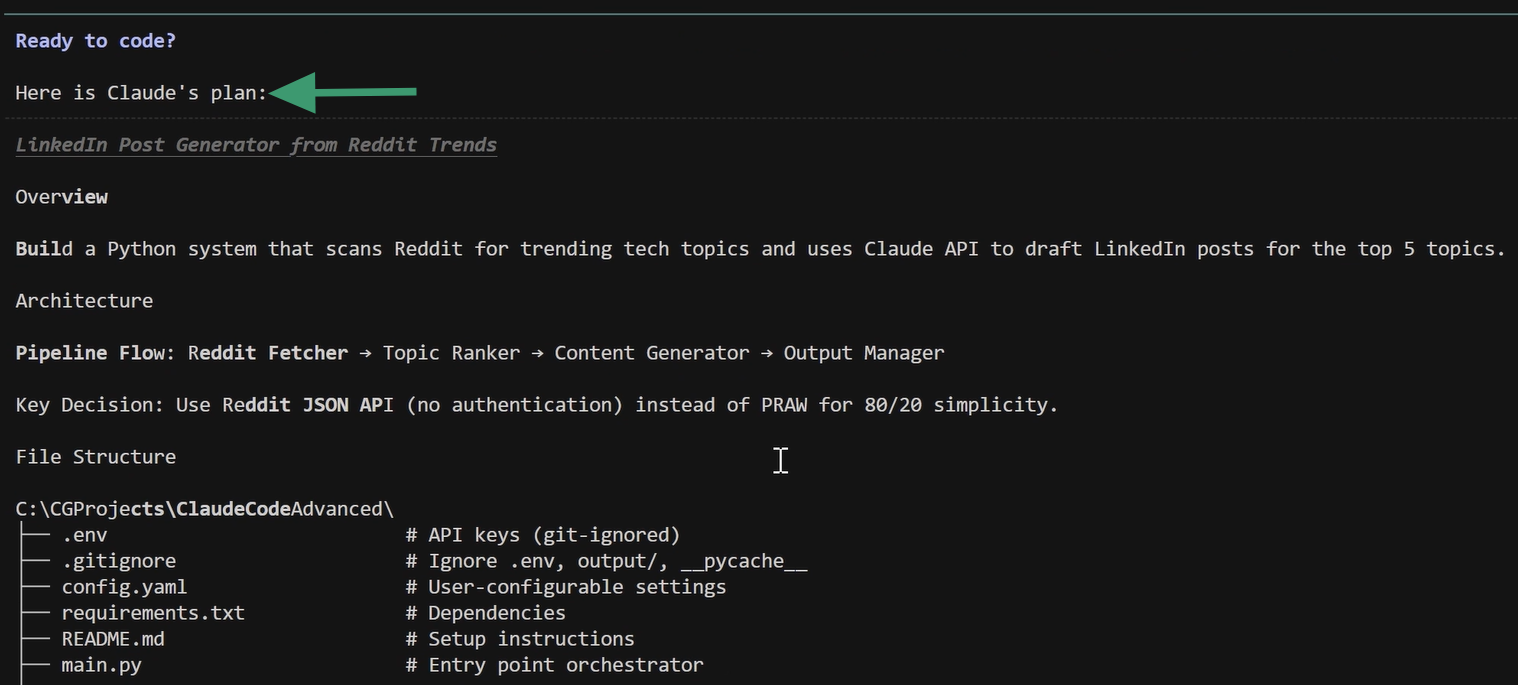
To demonstrate Plan Mode, I asked Claude to build a system that scans Reddit for trending tech topics and automatically drafts LinkedIn posts.
Complex project. Perfect for Plan Mode.
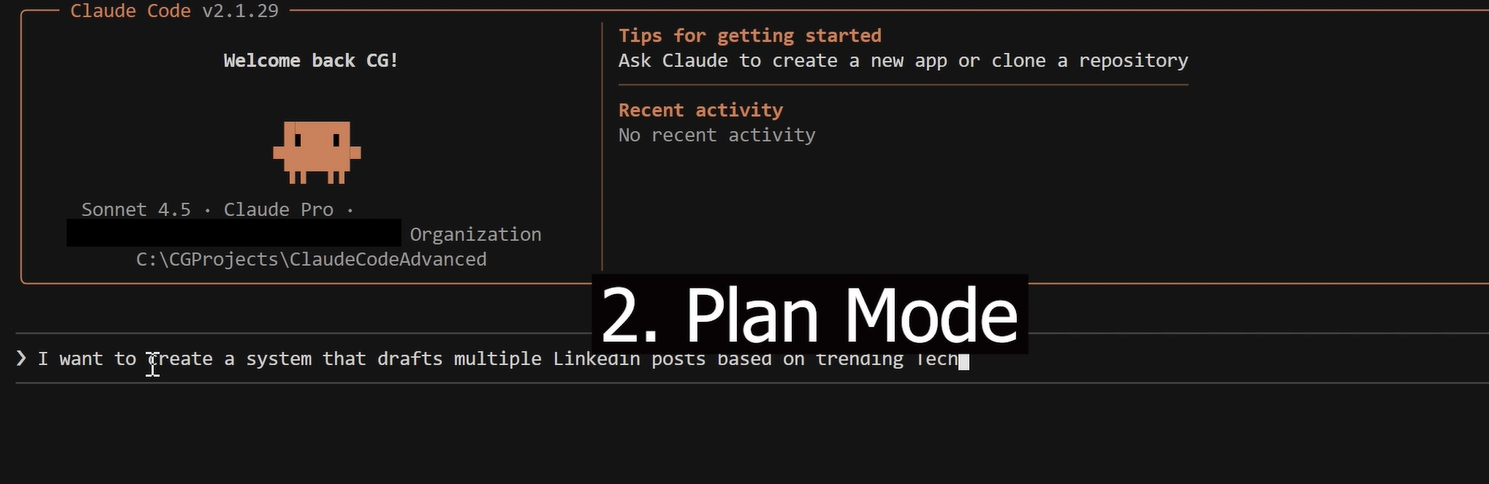
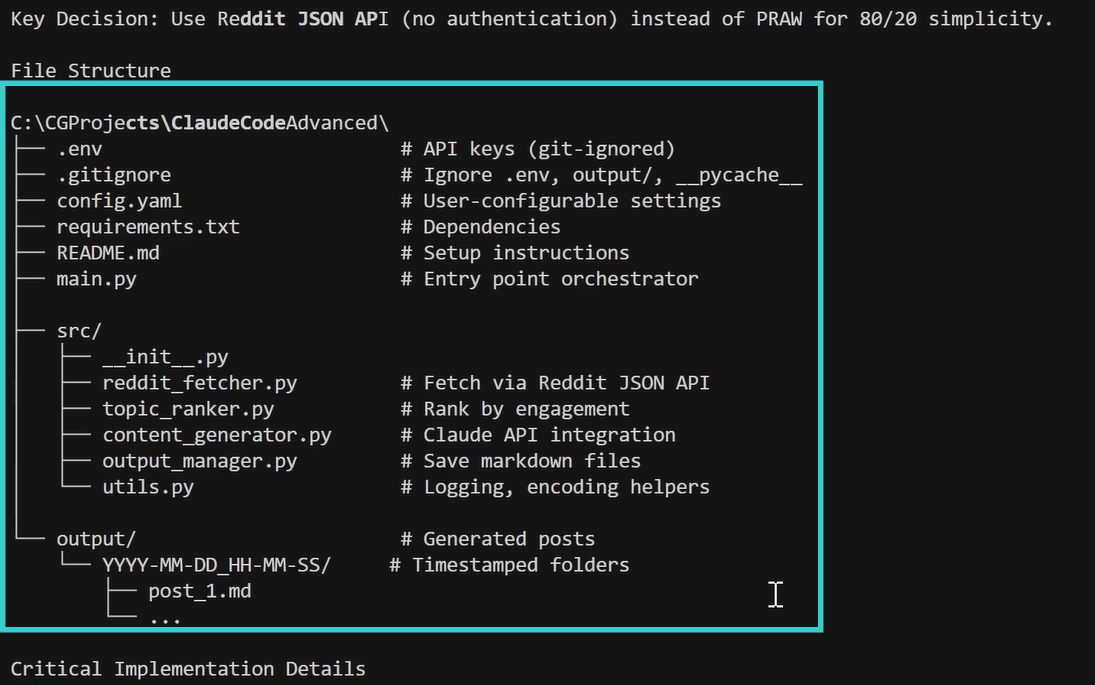
2. Plan Mode Demo - Reddit Research to LinkedIn Post Generator
How I Used It: Step-by-Step Walkthrough
Step 1: Request Plan Mode
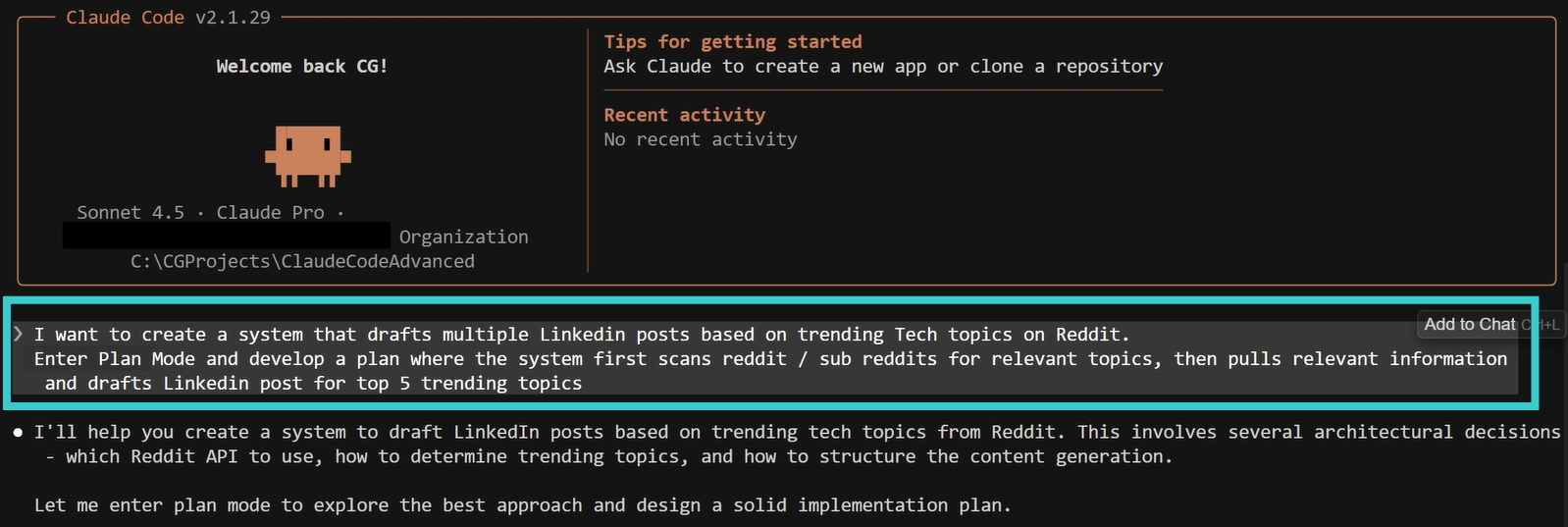
I gave Claude the high-level goal and explicitly requested Plan Mode:
"I want to create a system that drafts multiple LinkedIn posts based on trending Tech topics on Reddit. Enter Plan Mode and develop a plan where the system first scans reddit / sub reddits for relevant topics, then pulls relevant information and drafts LinkedIn posts for top 5 trending topics."
Step 2: Claude Explores and Asks Questions
Claude responded: "I'll help you create a system to draft LinkedIn posts based on trending tech topics from Reddit. This involves several architectural decisions."
Then it entered Plan Mode and immediately launched an Explore agent to understand the current codebase structure.
This agent ran separately (9 tool uses, 12.4k tokens, 30 seconds) to map out what already exists.
Next came structured questions.
Claude presented multiple-choice options with "Recommended" tags:
- Which approach for generating LinkedIn content? (AI-generated using Claude API - Recommended)
- Which tech subreddits to monitor? (r/technology, r/programming, r/artificial - Recommended)
- How should the system output posts? (Save to markdown files - Recommended)
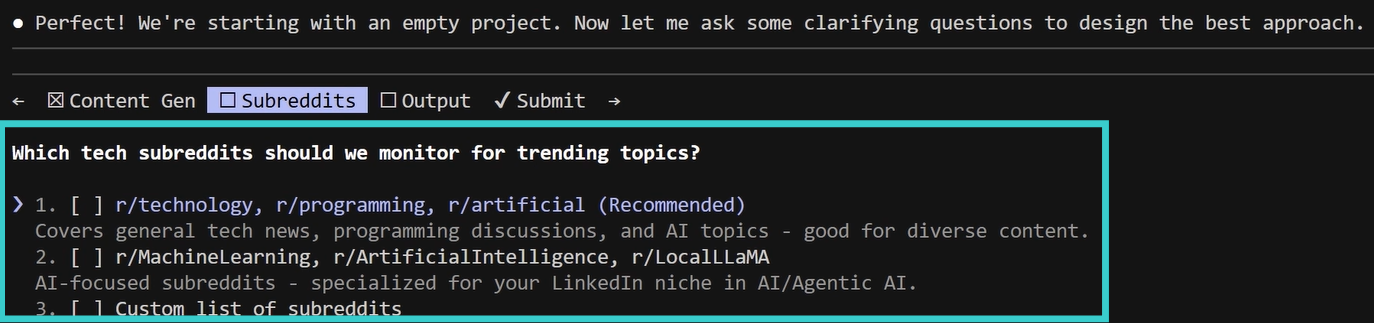
This is way better than open-ended "what do you think?" back-and-forth. You see options with context and pick what makes sense.
Step 3: Claude Researches and Designs the Plan
After I selected my preferences, Claude launched a Plan agent that did web research on best practices.
The final plan included:
- Complete file structure (main.py, src/ folder with modules, config.yaml, requirements.txt)
- Architecture diagram showing the pipeline flow
- Implementation details for each component
At the end: "Ready to code?"
When to Use Plan Mode
Use Plan Mode for:
- New feature implementation that touches multiple files
- Architectural decisions where multiple approaches are valid
- Complex refactors that need careful sequencing
- Projects with unknowns where you need to research options first
For simple edits or single-file changes, skip it. For anything that makes you think "hmm, how should we approach this?", enter Plan Mode.
Key Takeaways
- Prevents Wasted Work: No more building for an hour only to realize you took the wrong approach. You align on architecture before writing code.
- Specialized Agents Do the Heavy Lifting: Explore agents analyze your codebase. Your main conversation stays clean, with efficient token usage.
- Structured Decision-Making: Instead of endless "what do you think?" back-and-forth, you get clear options with recommendations.
- Research Integration: Claude searches for current libraries, recent approaches, and up-to-date patterns for 2026.
Pro Tip: For any project where you're unsure about the approach, say: "Enter Plan Mode and design an implementation strategy for [your goal]." You'll save time even if the planning takes a few extra minutes.

Feature #3: Explore Agent
Understand Codebases Lightning Fast

What is Explore Agent?
- The Explore Agent is a specialized AI agent that analyzes codebases on your behalf.
- Uses Haiku model (faster, cheaper) to perform multiple file reads & searches.
Why This Matters
Ever tried to understand a new codebase by manually understanding files?
You make dozens of searches, read multiple files, piece together patterns. It's slow, you miss connections, and it clutters your conversation history.
Explore Agent solves this:
- Comprehensive analysis across multiple files and patterns
- Context isolation so your main conversation stays focused
- Cost efficiency by using Haiku model instead of Sonnet
- Speed through parallel file operations and smart exploration
Real Demo: Analyzing FlowState Codebase
Note: FlowState is one of my personal projects that helps me create workflow diagrams using AI
To demonstrate Explore Agent, I opened one of my automation projects called FlowState. This project converts Mermaid diagram syntax into PNG images.
3. Explore Agent Demo - Assessing codebase of a project called 'FlowState'
How I Used It: Step-by-Step Walkthrough
Step 1: Ask an Exploration Question
I gave Claude a broad architectural question:
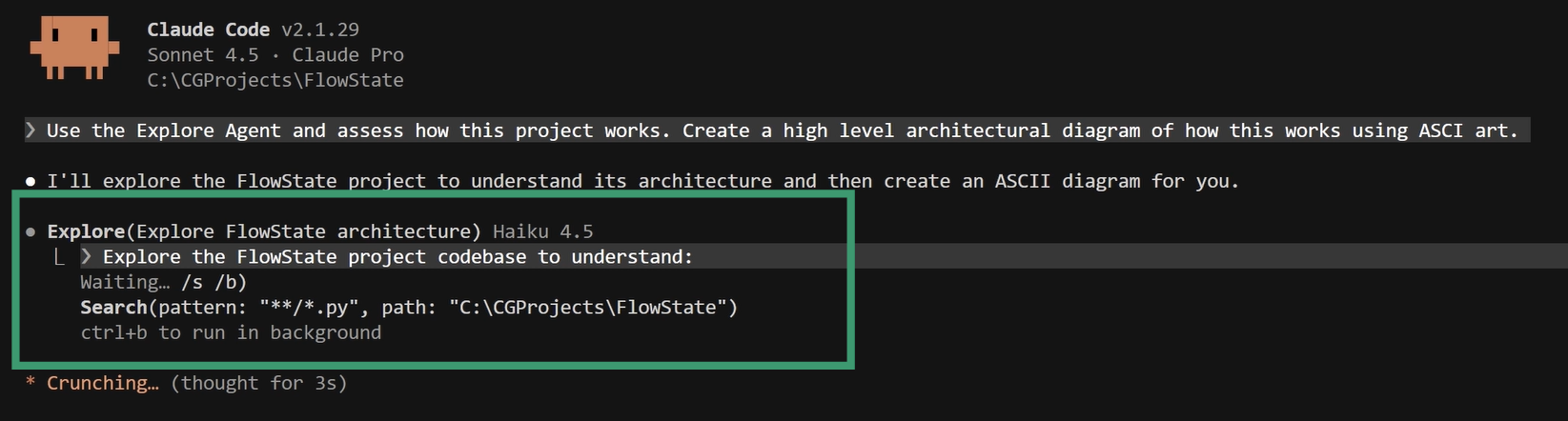
"Use the Explore Agent and assess how this project works. Create a high level architectural diagram of how this works using ASCII art."
Step 2: Explore Agent Launches Automatically
Claude responded: "I'll explore the FlowState project to understand its architecture and then create an ASCII diagram for you."
Then the status line showed the agent launched:
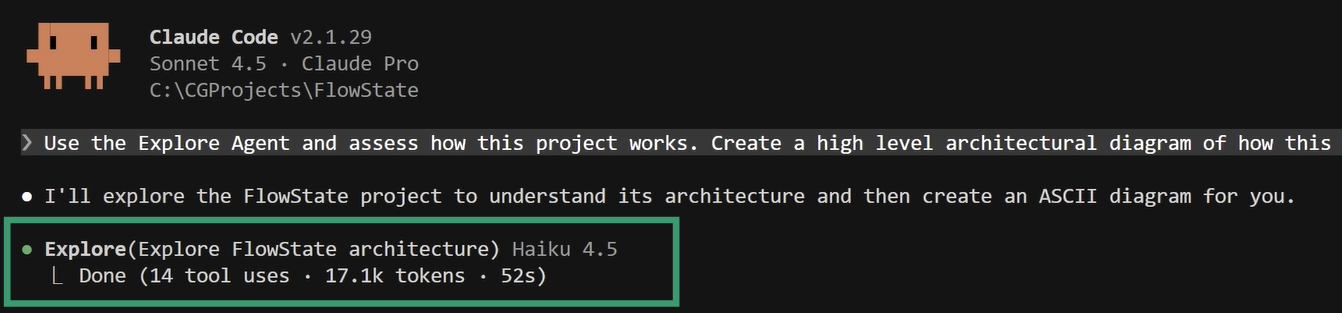
Explore Agent with Haiku 4.5 model ran for 52 seconds, performed 14 tool uses, and consumed 17.1k tokens.
Key point: Those 17.1k tokens are separate from my main conversation!
Step 3: Received Structured Analysis
After exploration, Claude presented a detailed ASCII architecture diagram.
The diagram showed the complete data flow from input to output. I understood the entire project in under a minute without reading a single file manually.
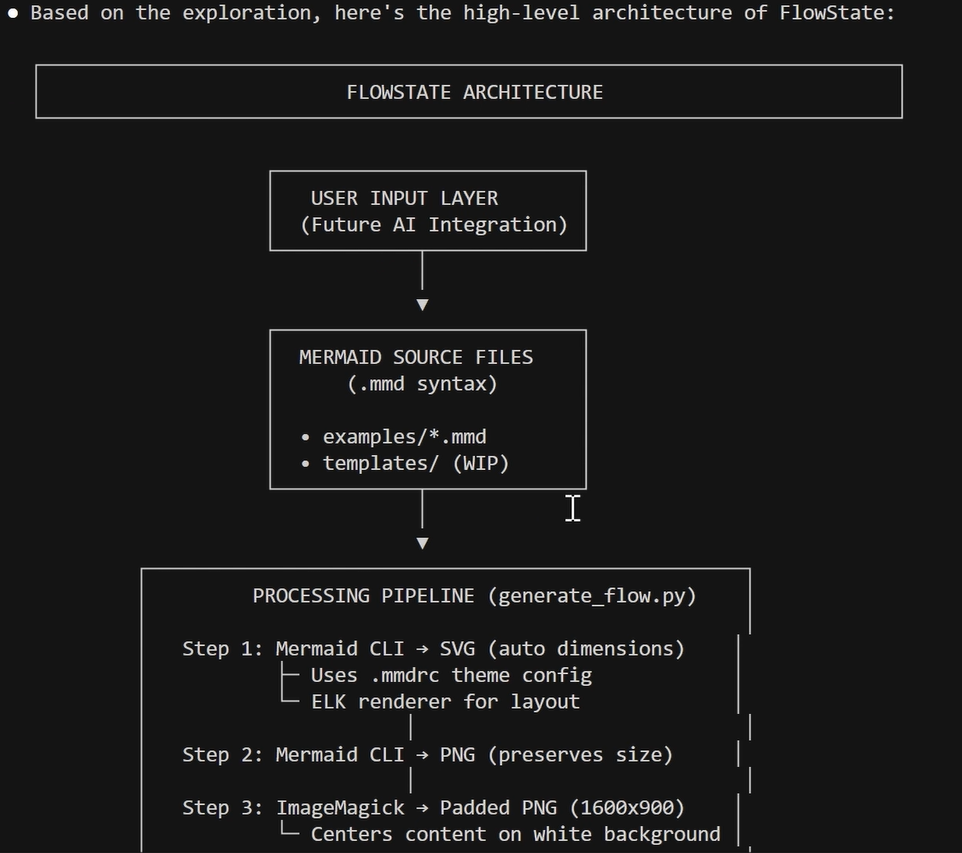
The agent also explained component relationships, identified the technology stack (Node.js, Mermaid CLI, Python orchestration), and highlighted key design decisions.
When to Use Explore Agent
Use Explore Agent for:
- Architectural understanding of unfamiliar codebases
- Pattern discovery across multiple files
- Broad exploration questions like "how is error handling done?"
- Project structure analysis when joining a new codebase
For finding a specific function or file, use normal search. For understanding how systems work together, use Explore Agent.
Key Takeaways
- Context Isolation: Exploration happens in a separate agent. Your main conversation doesn't get cluttered with dozens of file contents and search results.
- Cost Efficiency: Explore Agent uses Haiku 4.5 (faster, cheaper model). For codebase analysis, you don't need Sonnet's full power. This saves tokens and money.
- Comprehensive Analysis: The agent performs 10-15 tool operations in parallel, finding patterns and connections you'd miss with manual searches.
Pro Tip: When joining a new codebase or exploring unfamiliar code, start with: "Use the Explore Agent to analyze how [specific system/feature] works." You'll get up to speed faster than any manual exploration.

Feature #4: Background Runs
Drive True Parallel Productivity
Description
Background Processes let you run tasks without blocking your main conversation.
When you need research, long searches, or time-consuming operations, Claude launches them in the background as separate agents.
Why This Matters
Standard workflow: you ask Claude to research something (find APIs, compare libraries, analyze patterns), then wait while it searches and compiles results.
You're blocked! Can't continue building until research completes.
Background Processes change this:
- Non-blocking workflow so you continue working during research
- Parallel task execution where multiple things happen at once
- Flexible result retrieval when you're ready, not immediately
Real Demo: Researching Finance APIs While Planning
To demonstrate Background Processes, I was planning a stock analysis tool. I needed to research free finance APIs, but I didn't want to wait for the research to start planning the tool structure.
Perfect for background execution.
How I Used It: Step-by-Step Walkthrough
Step 1: Launch Research in Background
I gave Claude a research task with explicit background instruction:
"Search in background for top free APIs online that are available to provide finance / stocks related data for a project I am planning. I want a list of top 3-4 sources we can consider. I will share more details later."
Claude responded: "I'll search for top free finance/stock APIs in the background and compile a list for you."
Then the status showed:
Task(Research free finance APIs) - Backgrounded agent
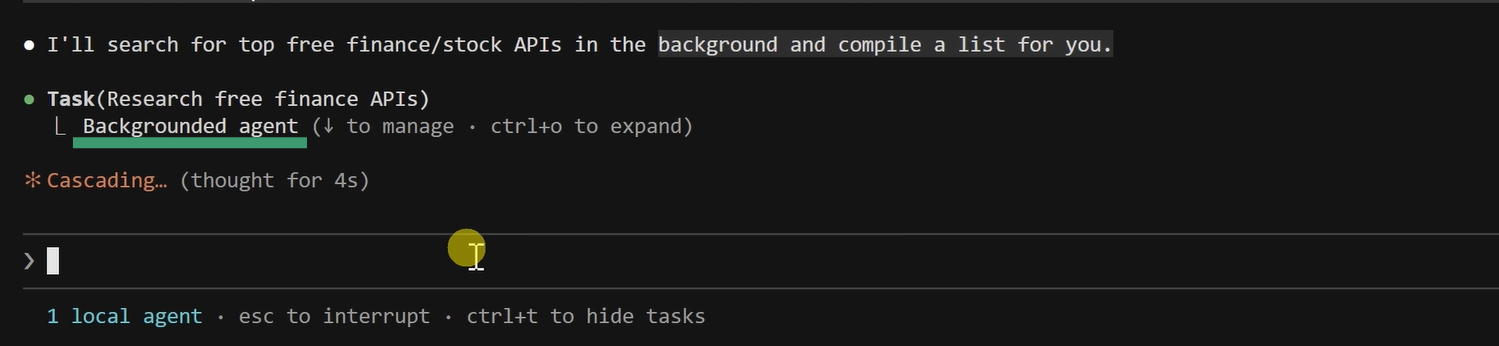
The agent started immediately, but I wasn't blocked. My terminal was ready for the next command.
Step 2: Continued Working While Agent Ran
While the background agent researched APIs, I immediately asked Claude:
"Create a task list for building a simple stock analysis tool that takes company name and uses some API that I will share later to provide some advice that user asks for. More details later."
Claude created a full task list (7 tasks from design to testing) while the background research was still running.
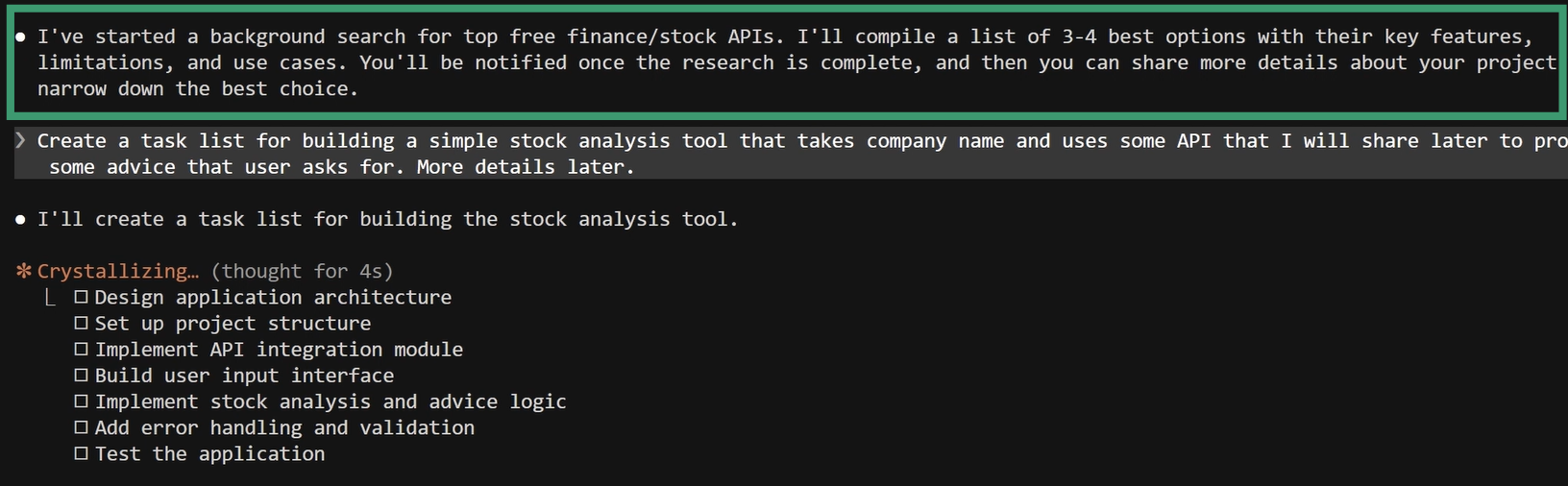
This is the power of background processes. Two things happening at once. No blocking, no waiting.
Step 3: Retrieved Results When Complete
After about a minute, Claude notified me:
"Agent 'Research free finance APIs' completed"
The results included a detailed comparison of 4 free APIs:
- Finnhub - 60 calls/minute, real-time data, no credit card needed
- Yahoo Finance (yfinance) - Unlimited requests, Python library, unofficial but widely used
- Alpha Vantage - 25 calls/day, comprehensive data including technical indicators
- Polygon.io - 5 calls/minute, 15-min delayed data, great documentation
Each included best use cases, limitations, and URLs.
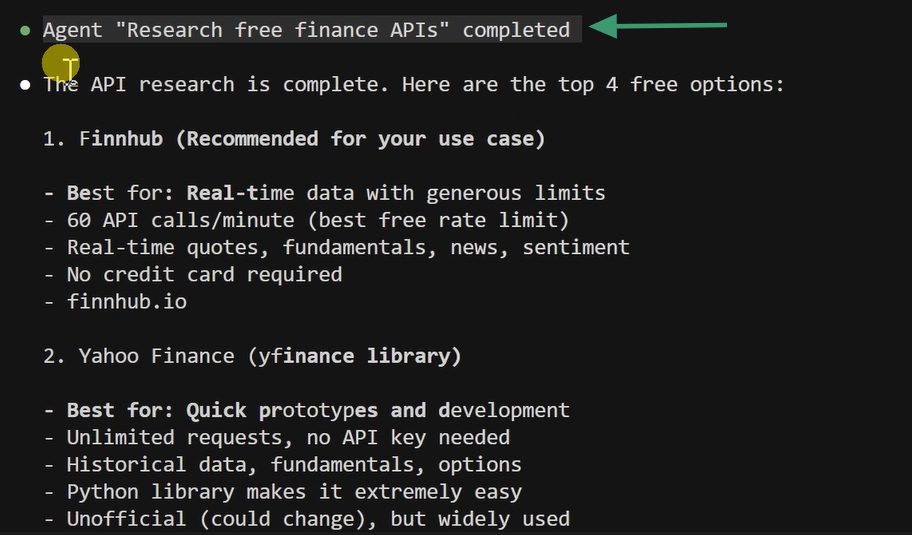
I got comprehensive research without waiting. By the time the agent finished, I already had my project structure planned.
When to Use Background Processes
Use Background Processes for:
- Research tasks that take time (API comparisons, library searches)
- Long-running operations like large codebase scans
- Parallel explorations when you need multiple investigations
- Non-urgent tasks where you don't need results immediately
If you need the answer right now to proceed, run it normally. If you can work on something else meanwhile, background it.
Key Takeaways
- Non-Blocking Workflow: Launch time-consuming tasks without waiting. Continue building, planning, or working while background agents run.
- Parallel Execution: Run multiple background tasks simultaneously. Research APIs, analyze codebases, search patterns, all at once.
- Task Orchestration: Combine background processes with task lists and plan mode for sophisticated multi-threaded workflows.
Pro Tip: When you need research but don't need it immediately, say: "Research [topic] in the background while we work on [immediate task]." You'll maximize productivity by parallelizing work.
Beyond the Core 4 Advanced Features
You've now learned the 4 features that deliver 90% of advanced productivity gains. But Claude Code has even more capabilities worth exploring:
- Parallel Tool Execution: Claude automatically runs independent operations simultaneously (reading multiple files, running parallel searches). You don't trigger this manually, it's built-in optimization.
- Skills & Slash Commands: Use `/commit` for intelligent git commits that follow repository conventions. Create custom skills for repeated workflows. Check available skills by typing `/help` in your terminal.
- Hooks System: Configure shell commands that execute automatically on events like file writes or tool calls. Great for auto-formatting, running tests, or custom validation.
- MCP Servers (Model Context Protocol): Extend Claude Code with custom integrations and tools. Connect to external APIs, databases, or services directly from your terminal.
- AskUserQuestion Tool: Claude can present structured multiple-choice questions during execution (you saw this in Plan Mode). Better than open-ended "what do you think?" questions.
Frequently Asked Questions
Q: What's the difference between Claude Code and Claude Cowork?
A: Claude Cowork is Anthropic's experimental agentic system that works across your devices. It's currently in research preview and not yet available on Windows. Claude Code is the production-ready CLI tool that's available now, works on Windows, and provides many of the same agentic capabilities (specialized agents, autonomous exploration, structured planning) through your terminal. If you need agentic AI for development today, Claude Code is the proven option.
Q: Do I need Claude Pro to use these advanced features?
A: Yes, Claude Code requires a Claude Pro subscription. The advanced features like Task Lists, Plan Mode, Explore Agent, and Background Processes are part of Claude Code's core functionality and require Pro access. However, the value you get from token savings (via context isolation and specialized agents) often pays for itself if you're building regularly.
Q: How much do these features cost in terms of token usage?
A: This is where these features shine. Explore Agents, Plan Agents, and Background Processes run with separate token budgets from your main conversation. When an Explore Agent uses 17k tokens analyzing a codebase, those tokens don't count against your conversation context. Task Lists persist outside conversation history entirely, so they consume zero ongoing tokens. You actually save tokens by using these features smartly.
Q: Can I use multiple Claude Code instances simultaneously?
A: Yes, you can run multiple Claude Code terminal instances in parallel. Each has its own conversation context. This is useful for testing features in one terminal while working in another, or running background processes in separate sessions. Just be careful not to edit the same files simultaneously or run conflicting git operations.
Q: What's the difference between Explore Agent and Plan Mode?
A: Explore Agent analyzes and explains existing code. Use it to understand how something works, find patterns, or map architecture. Plan Mode designs new implementations. Use it when you're about to build something and need architectural alignment first. Explore looks backward (understanding), Plan looks forward (designing).
Q: Do tasks persist if I close the terminal or restart my computer?
A: Yes. Task Lists live in Claude Code's task management system, not in your conversation history. You can close the terminal, clear context, restart your computer, or switch devices. When you open Claude Code again and ask "show me my tasks," they'll be there with current progress state maintained.
Q: Can I use these features for non-coding projects?
A: Absolutely. While Claude Code is built for developers, these features work for any complex project. Content creators use Task Lists for article production workflows. Researchers use Explore Agent to analyze documentation. Anyone building automations or multi-step processes benefits from Plan Mode. The tools are project-agnostic.
Q: How is vibe coding with Claude Code different from chatting with Claude in the browser?
A: Claude Code integrates directly with your file system, can read and write files, execute terminal commands, work with git repositories, and maintain persistent task state. Browser Claude is great for conversations and advice. Claude Code is great for building. Vibe coding means Claude has direct access to your development environment and can take actions, not just suggest them.
Q: What should I learn next after mastering these four features?
A: Start exploring Hooks for automating repetitive actions (auto-formatting, running tests). Look into MCP Servers if you need custom integrations. Try custom skills for workflows you repeat frequently. But honestly, if you master Task Lists, Plan Mode, Explore Agent, and Background Processes, you're already in the top 1% of Claude Code users.
Q: Where can I find more Claude Code tutorials and guides?
A: Start with my beginner's guide to Claude Code if you haven't already. For official documentation, visit Anthropic's Claude Code docs. I regularly publish vibe coding guides and AI development content on CGStrategyLab and share insights on LinkedIn.
Continue Learning
Related CG Strategy Lab Resources:
- Comprehensive AI Ebook: AI Concepts in a progressive & practical style
- N8N Automation Guide: Learn workflow automation
- AI Framework Comparison: Understanding different AI development tools
CG Strategy Lab explores practical AI implementation insights that bridge strategy and execution. Share your comments here and connect with me on LinkedIn if you'd like to discuss this topic further.
![Practical Guide to Learning AI: From Tokens to Agents [ebook]](/content/images/size/w600/2025/08/Blog-Featured-Images...--4-.png)