Codex Guide - Build Your First Project: Practical Vibe Coding
Most Codex guides list features. This one shows the full workflow. Follow a real color picker build from first prompt to working app, and learn the habits that make Codex genuinely useful.

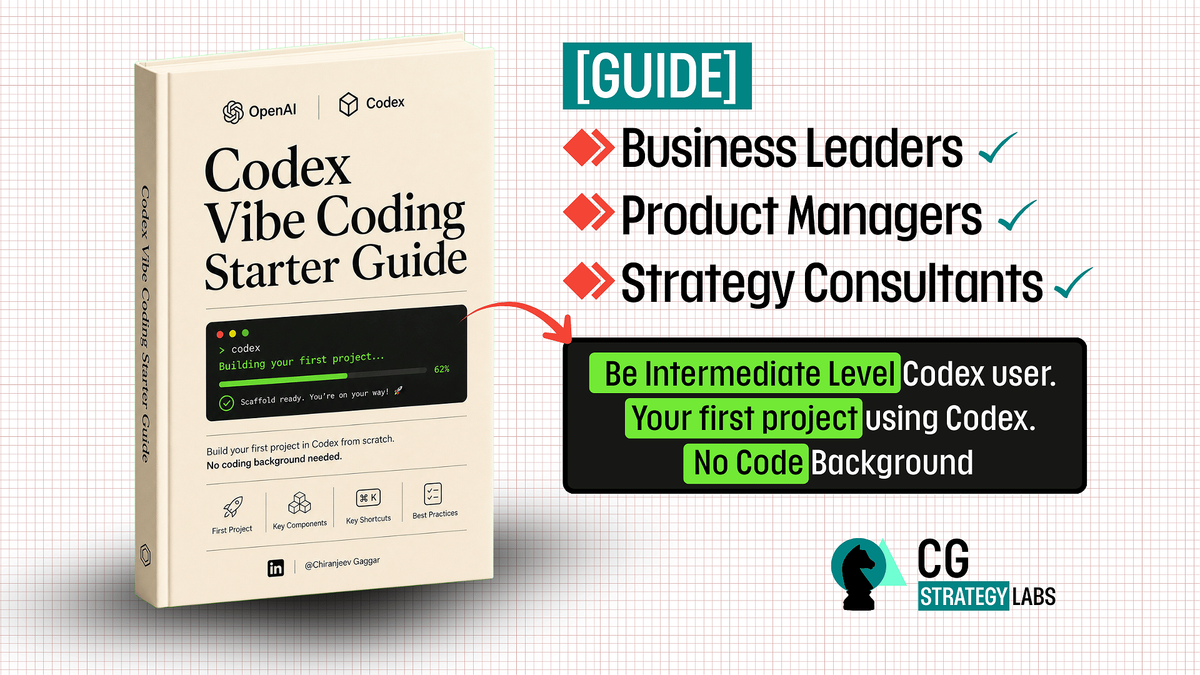
If you are curious about Codex but do not want another generic AI coding feature list, this guide is for you.
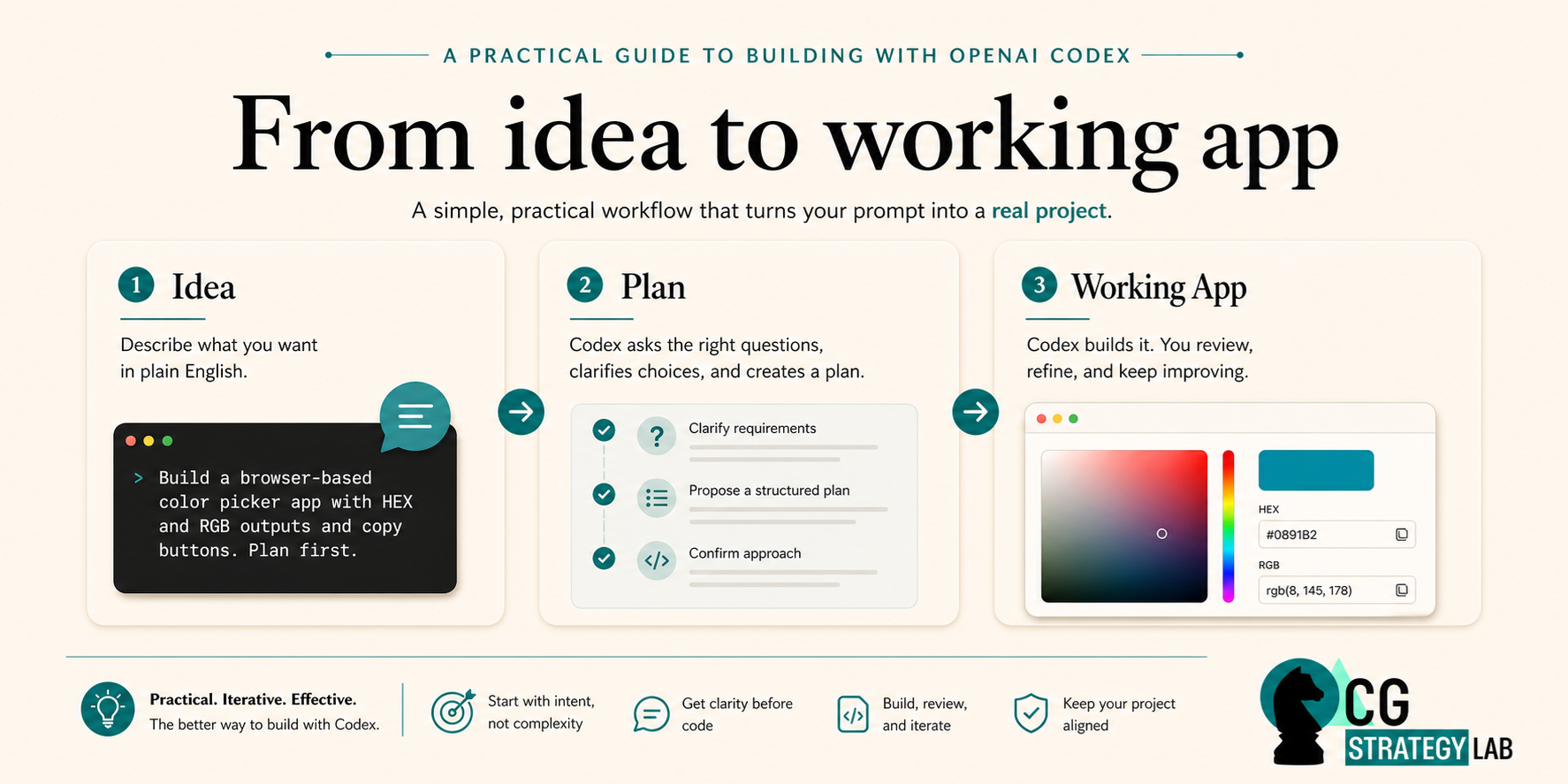
The goal is simple. I want to show you how Codex works as a coding assistant in a practical workflow.
Not a polished launch demo.
Not a theoretical comparison chart.
A real project, with real prompts and a real result.
This guide is especially useful for Product Managers, Consultants, Business Leaders, and AI enthusiasts. You will understand how tools like Codex can help you build faster, think more clearly, and turn ideas into working outputs without becoming an engineer.
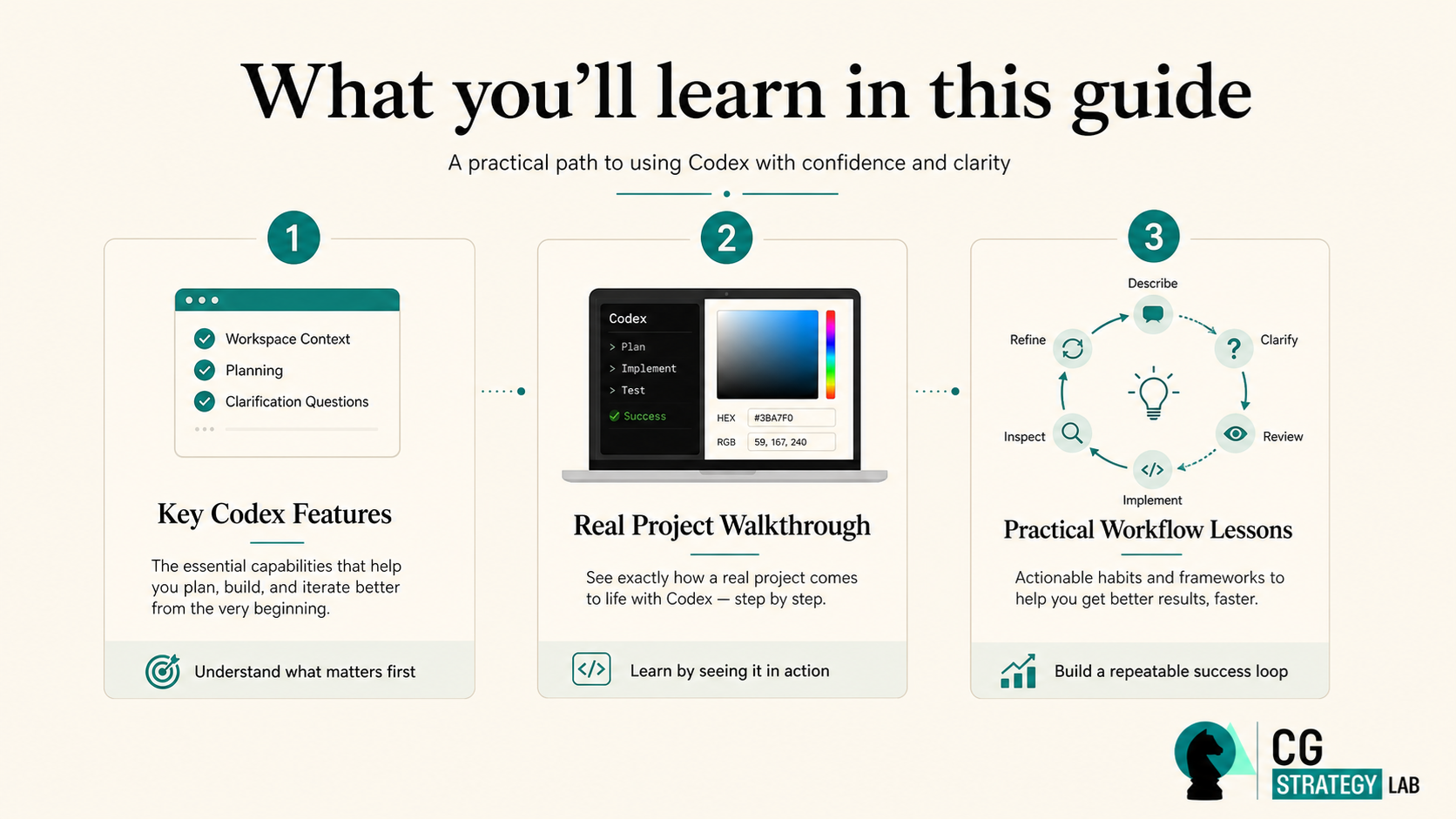
We will cover the key features that matter most at the start, then walk through a project I built with it so you can see what the workflow actually looks like.
What Codex actually helps you do
Codex is not a chatbot that answers coding questions. It works more like a coding assistant inside a project workspace.
That matters because building something useful involves more than generating a code snippet. You need to understand the task clearly, narrow choices before implementation, work inside a real folder, edit files, review changes, and keep track of context for future iterations.
If you are non-technical, the easiest way to think about it: Codex helps you move from "I have an idea" to "I have a working output I can inspect and improve."
You still need to guide it well. But the quality of the workflow is much better when the assistant can see a real workspace, ask good clarification questions, and help you make progress step by step.
A quick setup before you begin
Codex is most useful when you run it inside an actual project folder or workspace. That gives it somewhere to inspect files, create new files, propose changes, and keep the work grounded.

Install Codex by going to this page:
- Using the terminal - preferred option
(Codex CLI - Like I am doing in this tutorial): https://developers.openai.com/codex/cli - Using the Codex app: https://chatgpt.com/codex/
The basic flow for CLI:
- Open your terminal and navigate to your project folder
- Launch Codex inside that folder
- Describe what you want to build in plain English
- Let Codex help you narrow and implement the task
codex
IMPORTANT:
If terms like terminal, local project folder, or workspace are still unfamiliar, I explained those concepts in my first Claude Code guide.
 Chiranjeev Gaggar
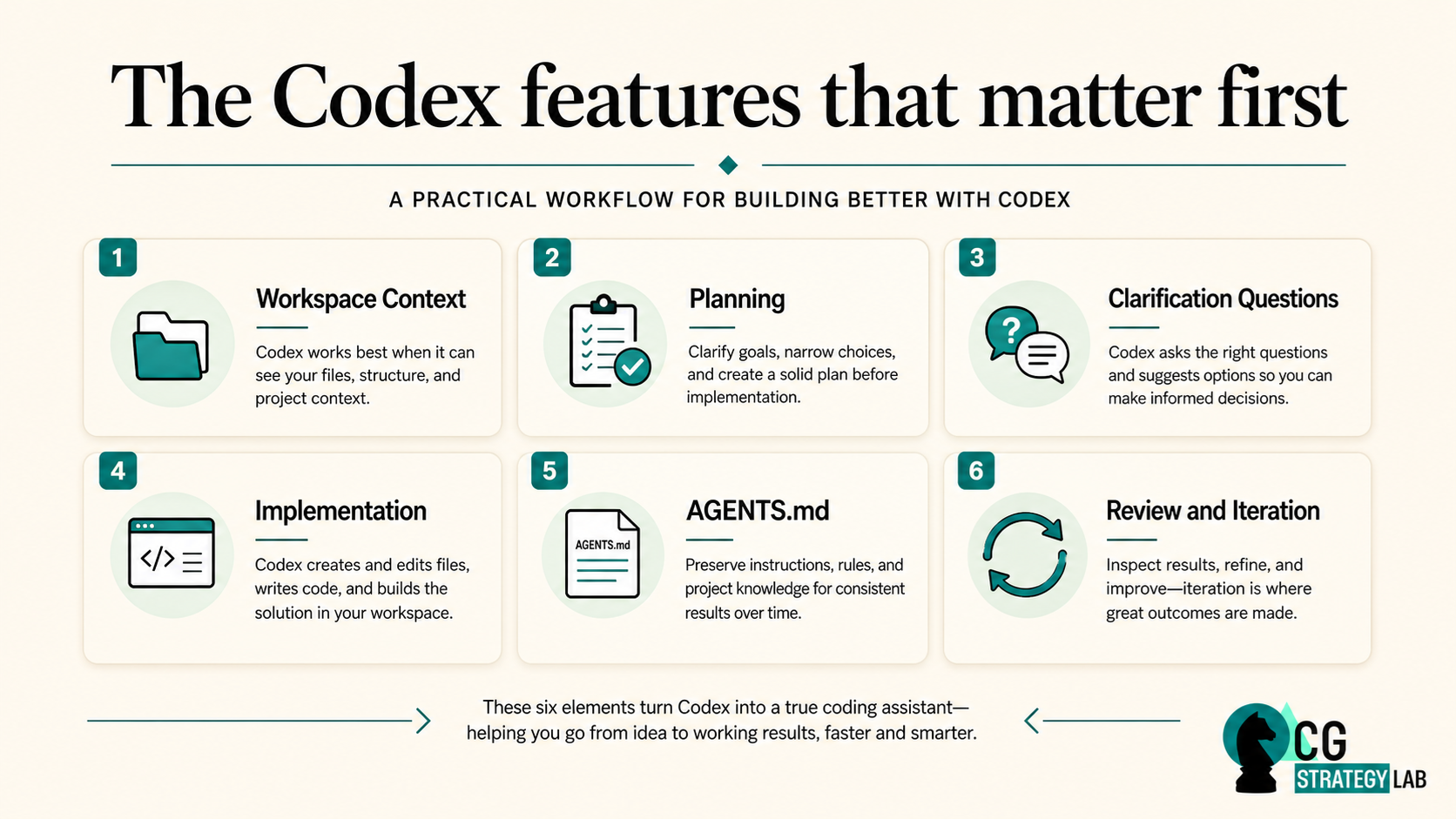
The key Codex features that matter
One mistake people make with tools like Codex is trying to understand everything at once. You do NOT need to.
If your goal is to get productive, there are a handful of features and habits that matter much more than the rest.
1. Working inside a real project
This is one of the most important mindset shifts.
Codex is not most useful when treated like a pure question-answer tool. It becomes far more useful when it is working inside an actual project folder. It can see the context of your work, inspect files, create or update files directly, and keep the work grounded in something real rather than hypothetical.
For non-technical users, understanding this early changes how you approach Codex entirely. A project workspace turns the interaction from "give me some code" into "help me build this thing."
2. Planning before coding
Jumping straight into implementation without narrowing the problem first is one of the most common sources of poor AI-assisted results.
Asking for a plan before implementation reduces vague outputs, surfaces useful decisions early, and makes the final build more aligned to what you actually want. For non-technical users, it also removes the pressure to specify every technical detail before you fully understand it.
Pro Tip!
End your first prompt with "create a plan before writing any code." This improves the quality of Codex outputs because it forces clarification before commitment.
3. Structured clarification questions
Instead of expecting you to define everything perfectly upfront, Codex can ask a series of narrowing questions with recommended options. Most people know the outcome they want before they know every implementation detail, and this is where that gap gets bridged.
This is especially useful for product-side and business-side users. You describe the outcome clearly, Codex helps turn fuzzy intent into concrete choices, and along the way you start understanding how technical decisions affect the result.
4. File editing and implementation
Once the task is clear enough, Codex can create files, edit files, and structure implementation inside your workspace. This moves it well beyond a code-chat experience.
The value is not just that it generates code. It is that it participates in the build process: creating artifacts, explaining what changed, and flagging what still needs to be checked.
5. AGENTS.md for project memory
An AGENTS.md file captures key instructions, working rules, and project context so future work stays consistent. Without it, you repeat the same setup context every session. With it, the assistant knows what matters, what constraints exist, and how the project should behave.
This is one of the most valuable intermediate-level habits to build early, and it is covered in more detail later in this guide.
6. Review and iteration
Do not treat Codex like a vending machine where one prompt should produce the perfect result.
The better default is: clarify the task, review the plan, inspect the implementation, then refine based on what you see. That loop is what separates beginner use from something genuinely productive.
A real example: building a browser color picker with Codex
Instead of keeping this theoretical, here is what this workflow looked like in a project I built.
The goal: a browser-based color picker that lets you click or drag across a palette, choose a color, and copy the output as HEX or RGB. Single HTML file, self-contained, portable.
This is a good demo project because the result is visually obvious. You can immediately see whether the tool understood the brief and whether the output is actually useful.
Step 1: Start with a plain-English request
I did not start by specifying every technical detail. I described the app I wanted and asked Codex to create a plan first.
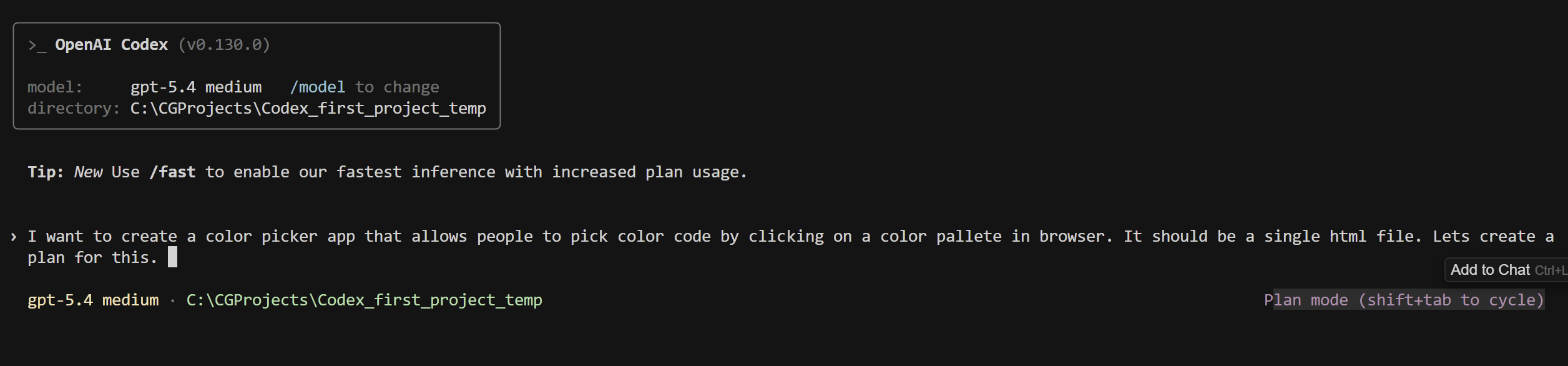
You do not need to fake being technical to use Codex well. Describing the outcome clearly and letting the assistant help narrow the implementation path is often more effective.
Step 2: Let Codex narrow the task through planning questions
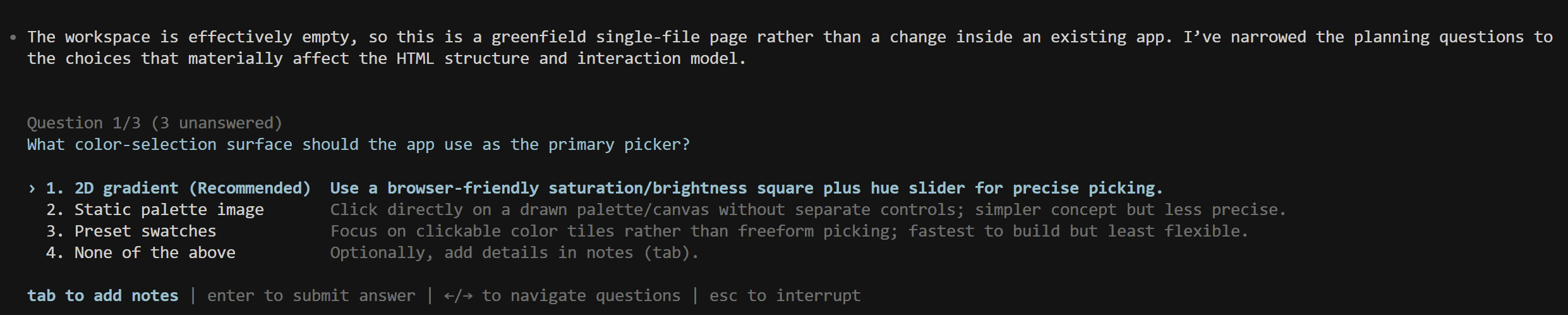
Instead of jumping straight into code, Codex responded with structured clarification questions. It asked what kind of color selection surface to use, which output formats to show, and whether to include copy buttons in the first version.
What made this useful:
It did not just ask open-ended questions.
It provided recommended options alongside each question.
That makes the process much easier to follow for non coders.


Step 3: Review the proposed plan
After the clarifications, Codex generated a proposed implementation plan. It outlined the structure: a standalone index.html, a 2D color surface, hue slider, live preview panel, HEX and RGB outputs, and copy buttons.
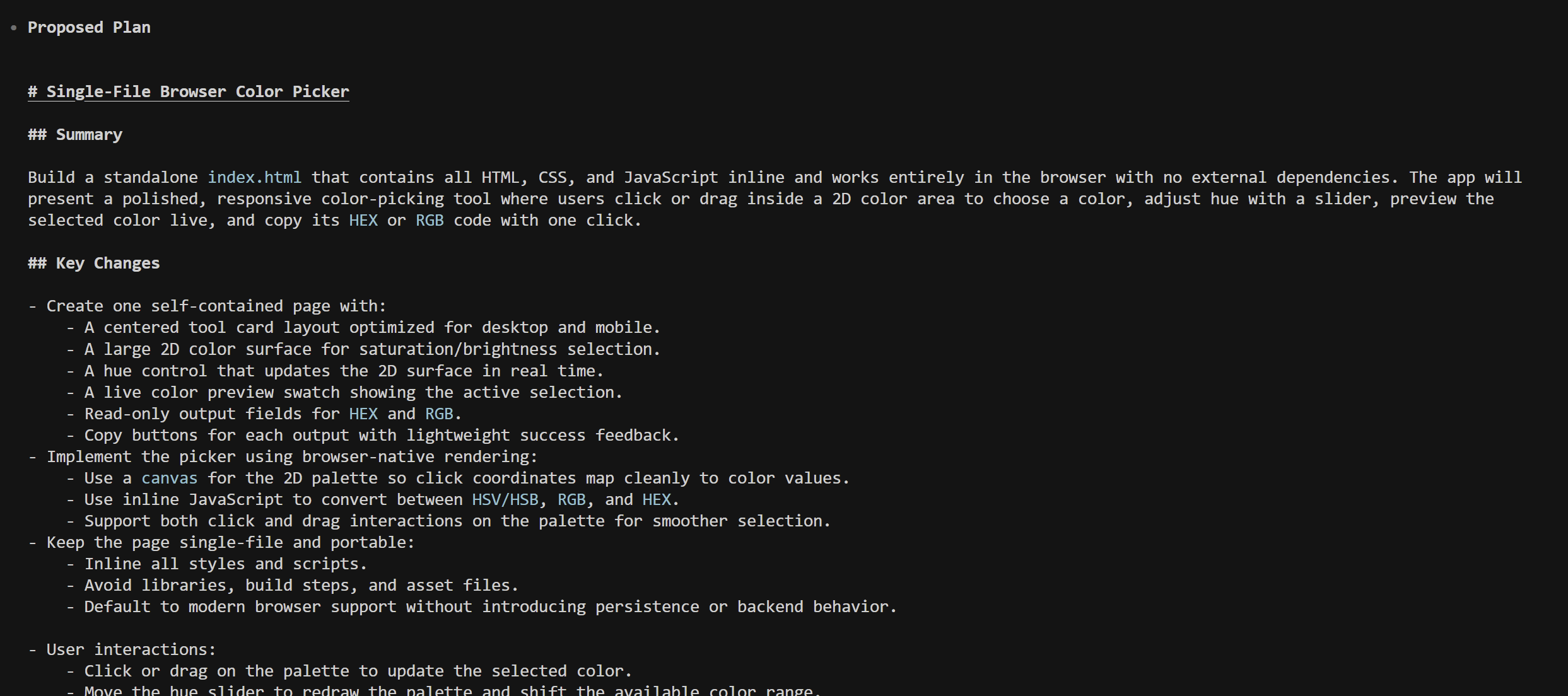
This is where the workflow earns its value for non-technical users. Before any code is written, you can inspect the shape of the solution and decide whether it matches your intent.
Step 4: Implementation
Once the direction was clear, Codex created the app and summarized what it had done, including what logic was implemented and where the file was saved.

It did not just produce code. It explained what changed and what to check visually in the browser. That makes the output much easier to review and trust.
Step 5: Inspect the result
The final app was polished and functional: a large color palette area, hue slider, live preview panel, HEX and RGB output fields, and one-click copy actions.
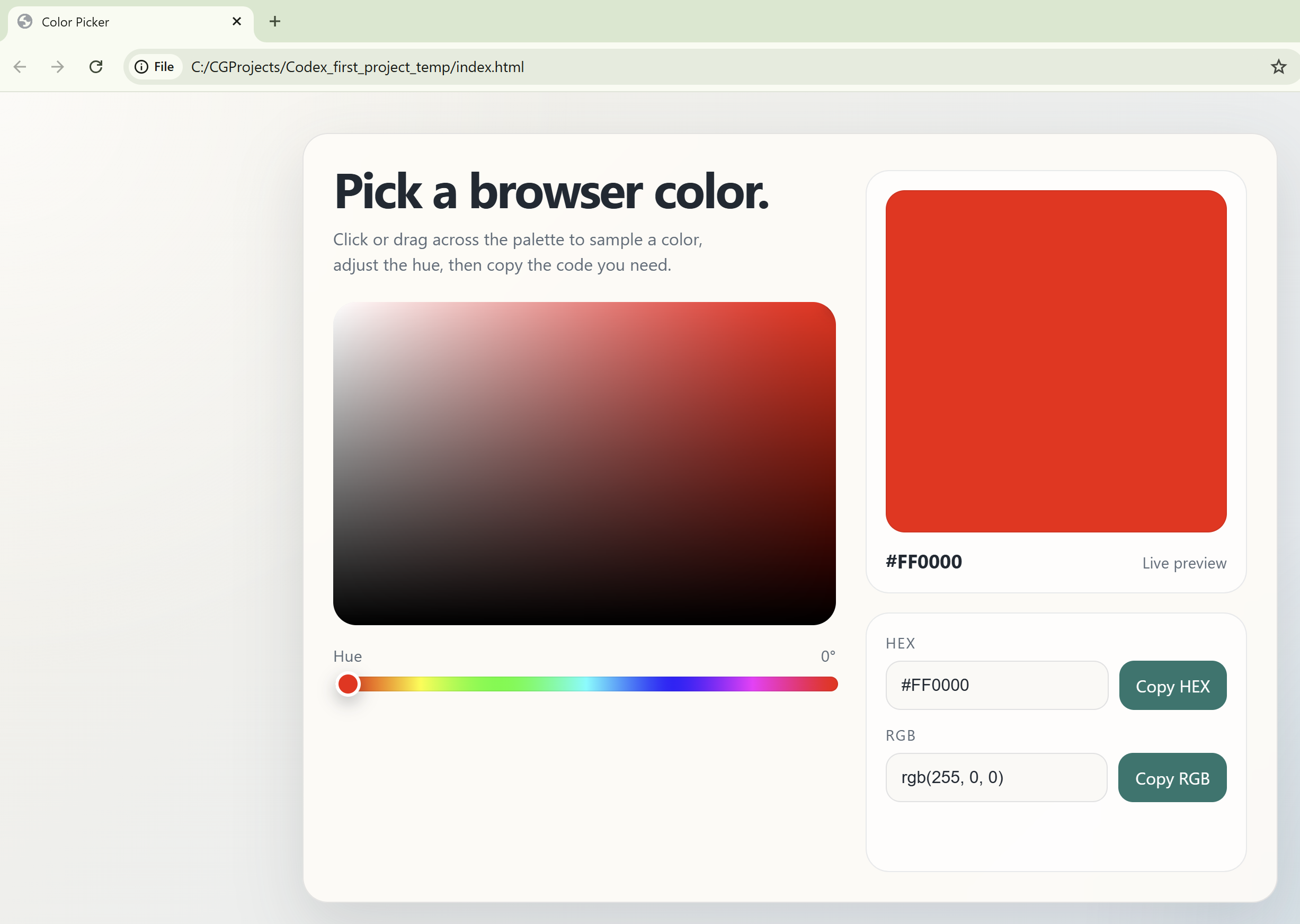
The result matters not because it is a sophisticated app, but because it shows the practical workflow end to end. Plain-English request, planning, structured clarification, implementation, visible result.
Step 6: Preserve context with AGENTS.md
After the build, I asked it to add an AGENTS.md file documenting the current project.

That step is what turns a one-time output into a project you can improve systematically over time.
Why AGENTS.md matters more than most beginners realize
If you take one intermediate-level habit from this article, make it this one.
Building a memory and preserving context is the main lever for improving your workflow over time.
An AGENTS.md file gives Codex a stable reference point:
--> What the project is
--> How it should behave
--> What constraints matter
--> What should stay consistent as the work evolves.
You stop needing to re-explain the same context every session.
Here is an example of what the AGENTS.md for the color picker project looks like:
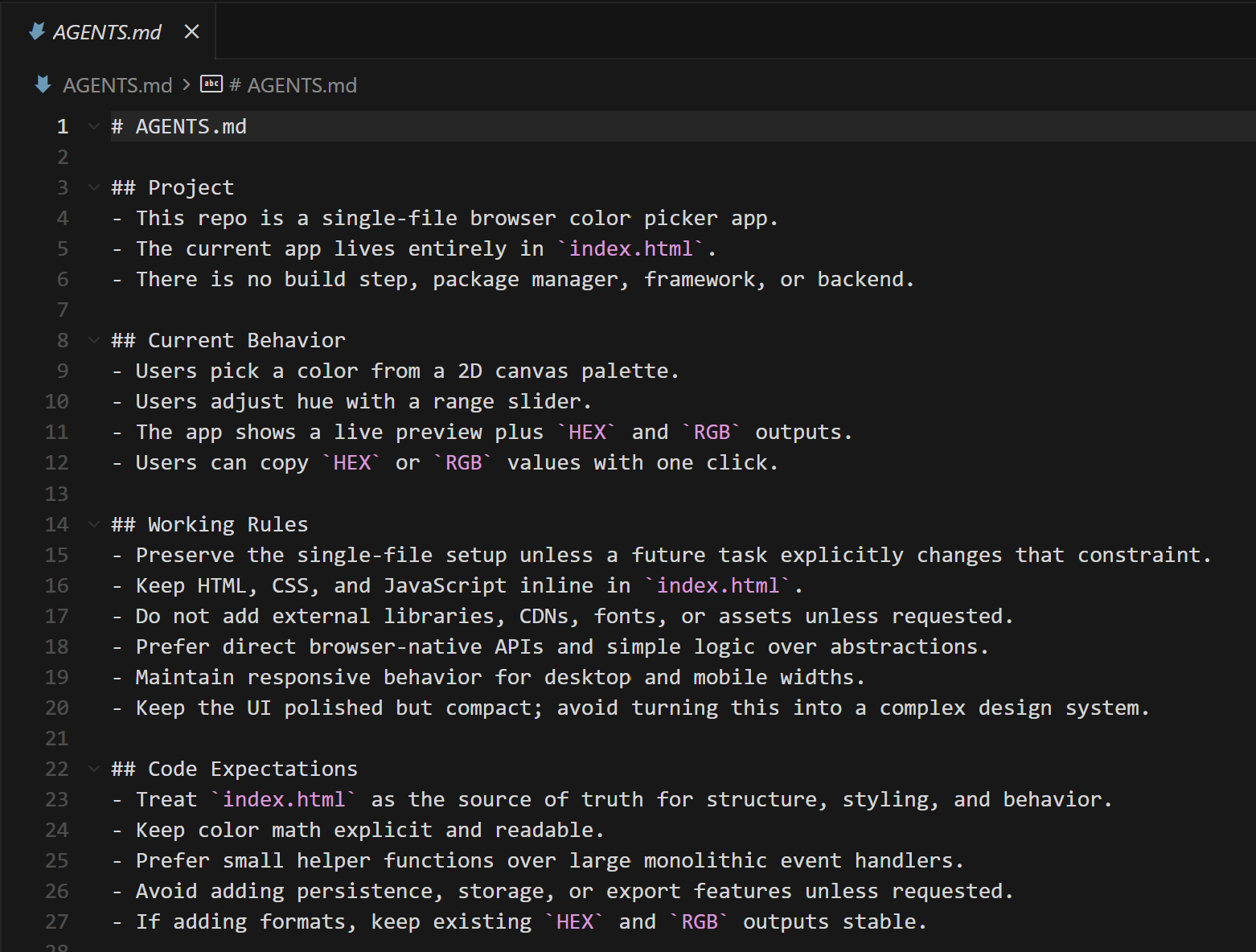
You can see what this accomplishes. Any future session starts with Codex already knowing the scope, the current state, the rules, and the style expectations. That continuity compounds over time.
If you have used Claude Code, the comparison to CLAUDE.md is a useful anchor. Both serve a similar purpose: helping the assistant operate well within the project by capturing instructions and context durably.
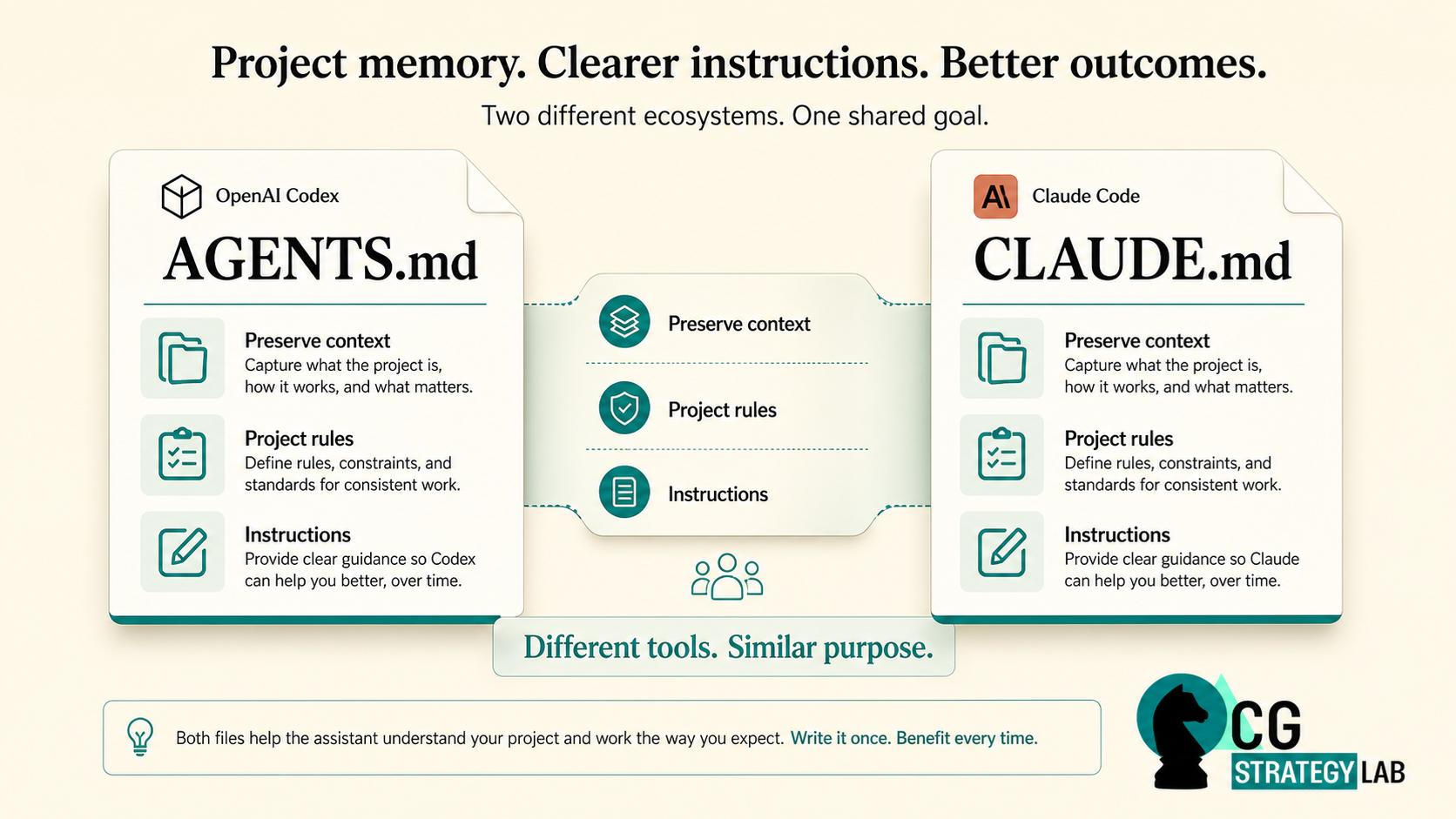
The ecosystems are different, but the underlying idea is the same.
This matters for people trying to move from casual experimentation into more productive use. You are building a working environment that gets easier to continue.
Become productive with Codex faster
You do not need to master every feature before getting useful results.
If you can do a few things consistently, you are already on the right path:
- Start inside a real workspace
- Describe the outcome you want in clear language
- Ask for a plan before implementation
- Answer clarification questions thoughtfully
- Review the proposed approach before accepting it
- Inspect the result
- Preserve project context with
AGENTS.md
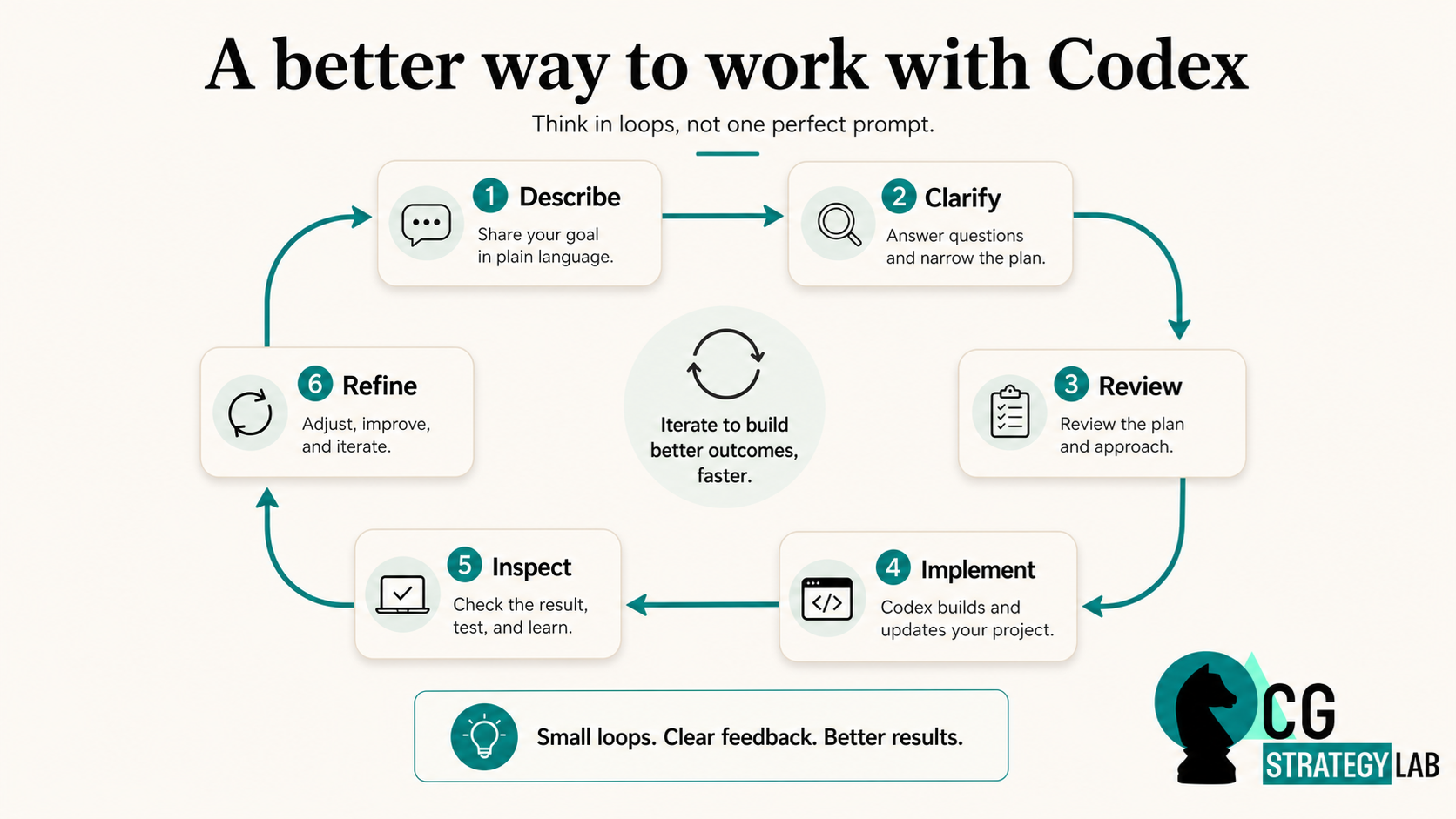
That loop is enough to move beyond casual experimentation and into something more reliable and repeatable.
Frequently Asked Questions
Q: What is OpenAI Codex and how is it different from ChatGPT?
A: Codex is a coding assistant that works inside a project workspace. Unlike ChatGPT, which operates as a general-purpose chat interface, Codex is designed to work with real files and folders. It can read your project structure, create and edit files, and participate in a build workflow rather than just generating code snippets in a chat window.
Q: Do I need to know how to code to use Codex?
A: No. Codex is genuinely useful for non-technical users, especially for building small, well-defined projects. The key is learning to describe your goal clearly and to work with the planning and clarification features rather than expecting one perfect prompt to produce everything. The workflow in this guide is designed specifically for people who are not professional developers.
Q: What is the difference between Codex and Claude Code?
A: Both are AI coding assistants that work inside real project workspaces. Codex is built by OpenAI. Claude Code is built by Anthropic. The core workflow concepts are similar: both support working inside a local project, both benefit from context files like AGENTS.md or CLAUDE.md, and both are designed for iterative building rather than one-shot prompting. The practical differences come down to model behavior, feature set, and which ecosystem you are already working in.
Q: What is an AGENTS.md file and why does it matter?
A: AGENTS.md is a plain text file you create inside your project folder to capture key instructions, working rules, and project context for Codex. Without it, you need to re-explain the project setup and constraints every session. With it, Codex starts each session already knowing the scope, constraints, and expectations. It is one of the highest-leverage habits you can build as an intermediate user.
Q: How is AGENTS.md different from CLAUDE.md?
A: They serve a very similar purpose. AGENTS.md is used in Codex projects, while CLAUDE.md is used in Claude Code projects. Both capture project instructions and context so the assistant operates consistently across sessions. If you have used one, you already understand the concept behind the other.
Q: Is Codex free to use?
A: Codex pricing depends on your OpenAI plan and usage. Access is available through the OpenAI platform. Check the OpenAI website for current pricing, as this can change over time.
Q: What kinds of projects is Codex best suited for?
A: Codex works well for building small to medium web projects, scripts, automation tools, and data utilities. It is particularly effective when the project is well-defined enough to plan before implementing. It is less suited for highly complex systems, production infrastructure, or work requiring deep domain expertise that is hard to communicate in plain language.
Q: What is OpenAI Codex and how is it different from ChatGPT?
A: Codex is a coding assistant that works inside a project workspace. Unlike ChatGPT, which operates as a general-purpose chat interface, Codex is designed to work with real files and folders. It can read your project structure, create and edit files, and participate in a build workflow rather than just generating code snippets in a chat window.
Q: Can I use Codex for production code?
A: Codex can produce functional code that is suitable for production use, but it always requires careful review. AI-generated code should be inspected before deployment, especially for security-sensitive logic, edge cases, or performance-critical paths. Think of Codex as a fast, well-structured first draft. For non-technical users, having a developer review the output before it goes live is a good practice.
CG Strategy Lab explores practical AI implementation insights that bridge strategy and execution. Share your comments here and connect with me on LinkedIn if you'd like to discuss this topic further.
![Advanced Vibe Coding with Claude Code [Guide + Real Demos]](https://storage.ghost.io/c/06/46/064606cd-f57b-4aec-beb2-5bf50f7efc7f/content/images/size/w600/2026/02/Blog-Featured-Images...--1-.png)
![Practical Guide to Learning AI: From Tokens to Agents [ebook]](https://storage.ghost.io/c/06/46/064606cd-f57b-4aec-beb2-5bf50f7efc7f/content/images/size/w600/2025/08/Blog-Featured-Images...--4-.png)